Here you select the employees you want to include in the upcoming payroll run. This helps prevent errors later on after submitting payroll.
- Go to Payroll > Payroll Settings
- In the inner horizontal menu, select the EMPLOYEES tab
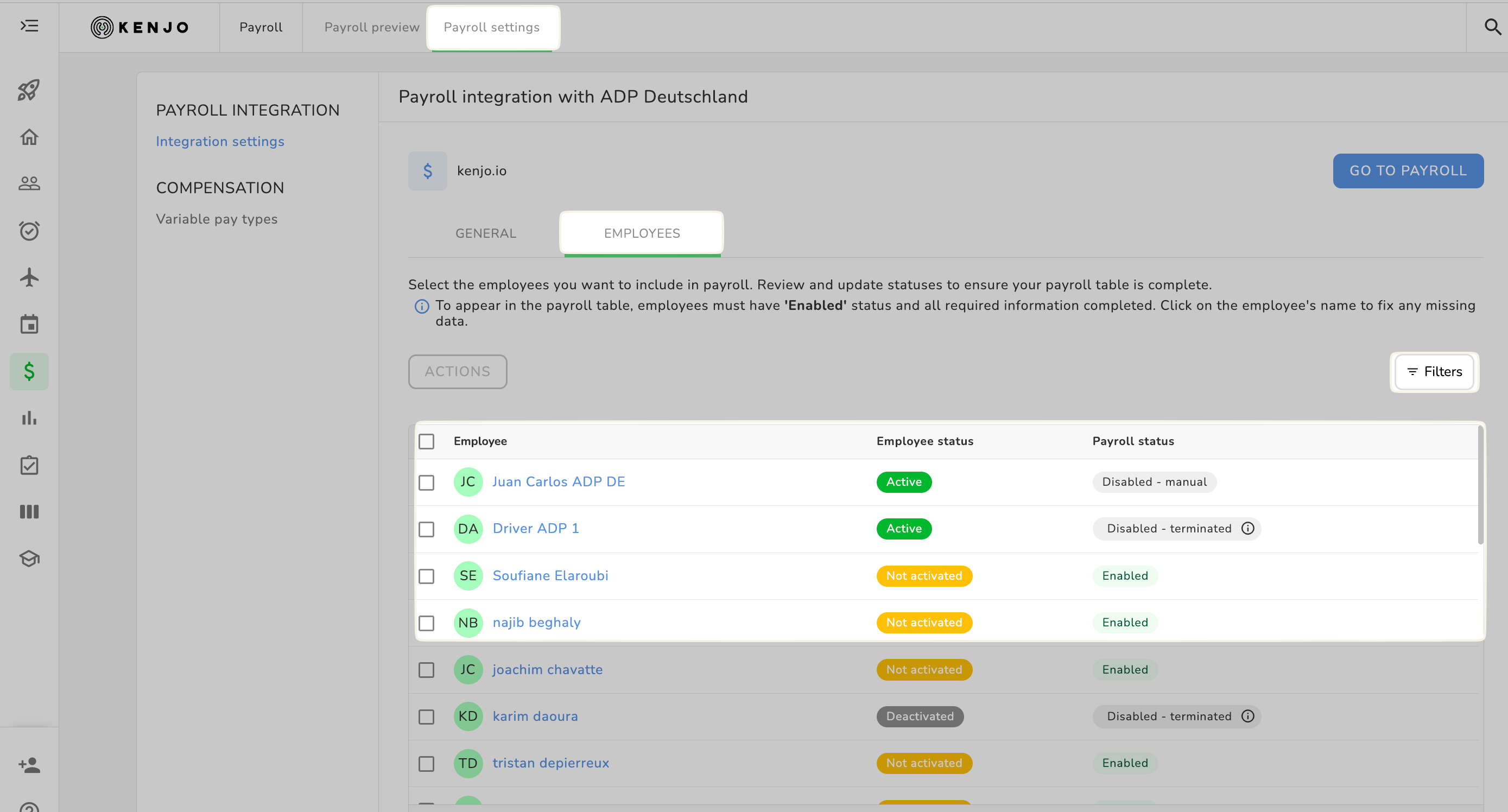
You can view both the employee status (active, not activated, and deactivated) as well as the different payroll statuses.
Click on Filter on the right to search by specific statuses.
Overview of payroll statuses
| enabled | Employee is included in the next payroll run |
| enabled until [date] | Employee is active in the payroll until the last day of that last payroll period for him. e.g Employee is leaving 15/01 will be active until 31/01, so he will be active for the payroll period of January. |
| enabled – incomplete data | Basic information is missing for this employee. Please complete it. |
| disabled | Employee is not included in the next payroll run |
| disabled – manual | The employee was manually deactivated for payroll. |
| disabled – terminated | Automatically deactivated based on the recorded termination date |
Activate or deactivate employees
- Go to Payroll > Payroll Settings
- In the inner horizontal menu, select the EMPLOYEES tab
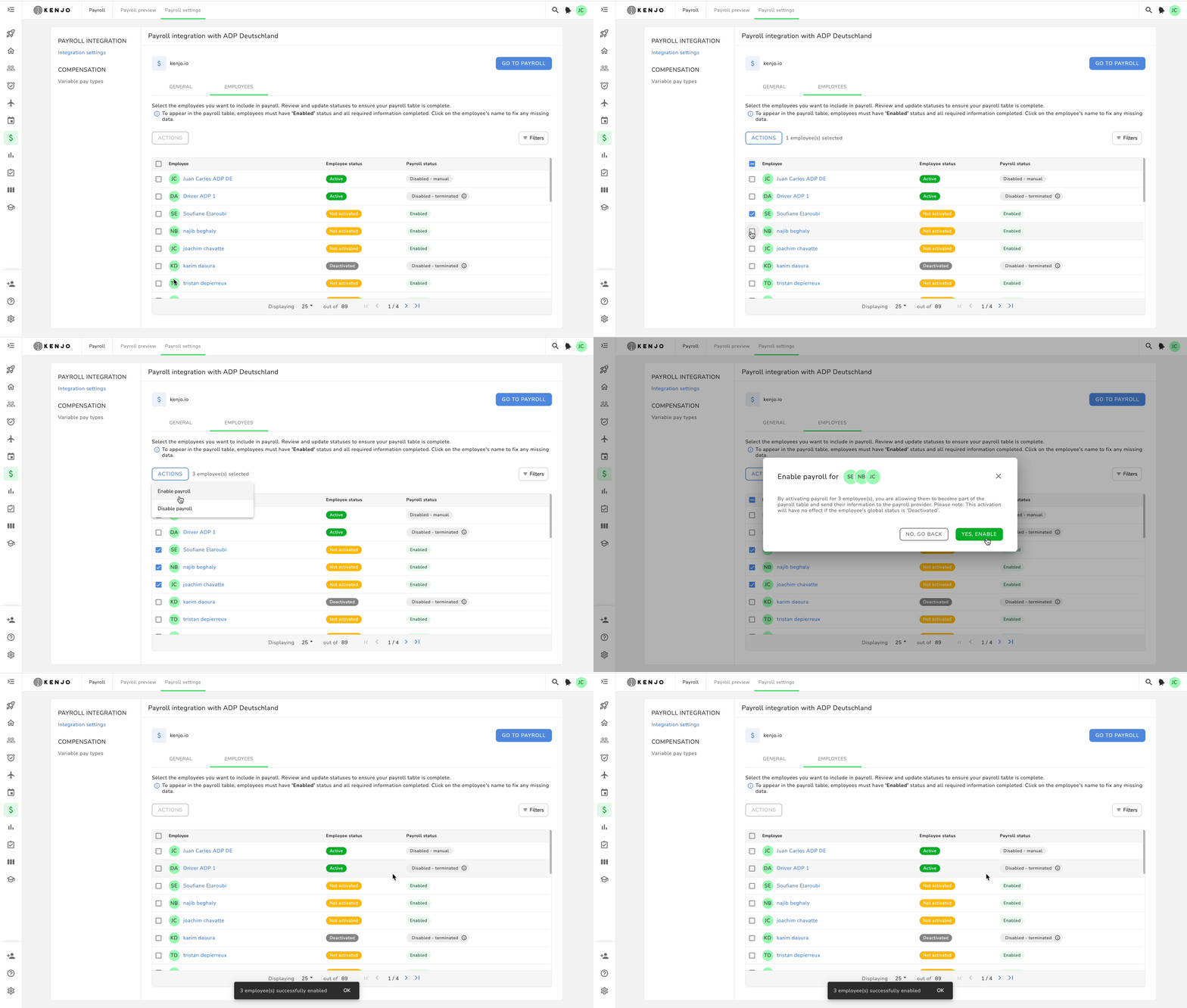
- Select one, multiple, or all employees by checking the box to the right of the employee name
- Click on ACTIONS
- Select enable or disable
Complete missing employee information
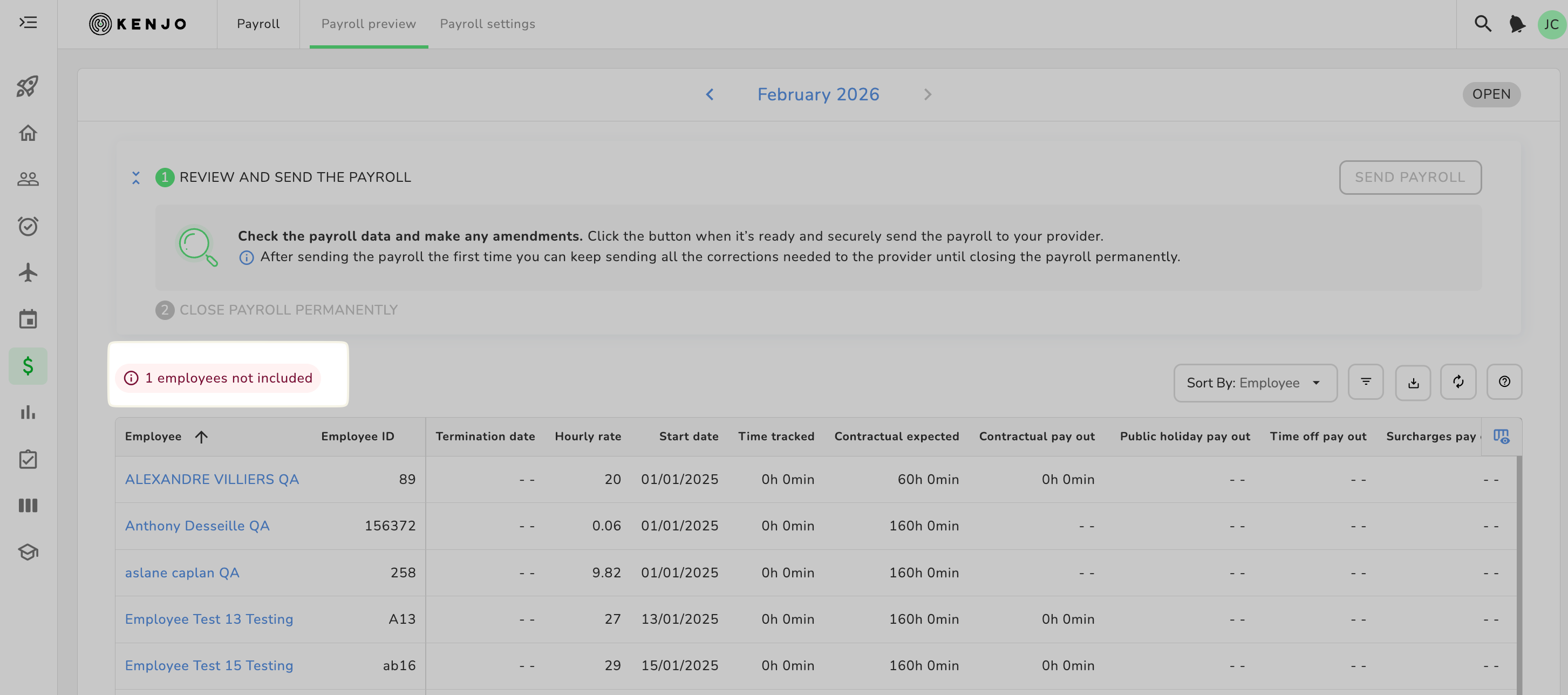
If important employee information such as employee ID or start date is missing for employees selected for payroll, an error message will be displayed in the payroll preview. You must (!) complete this information, otherwise you will not be able to submit payroll.
To complete missing information:
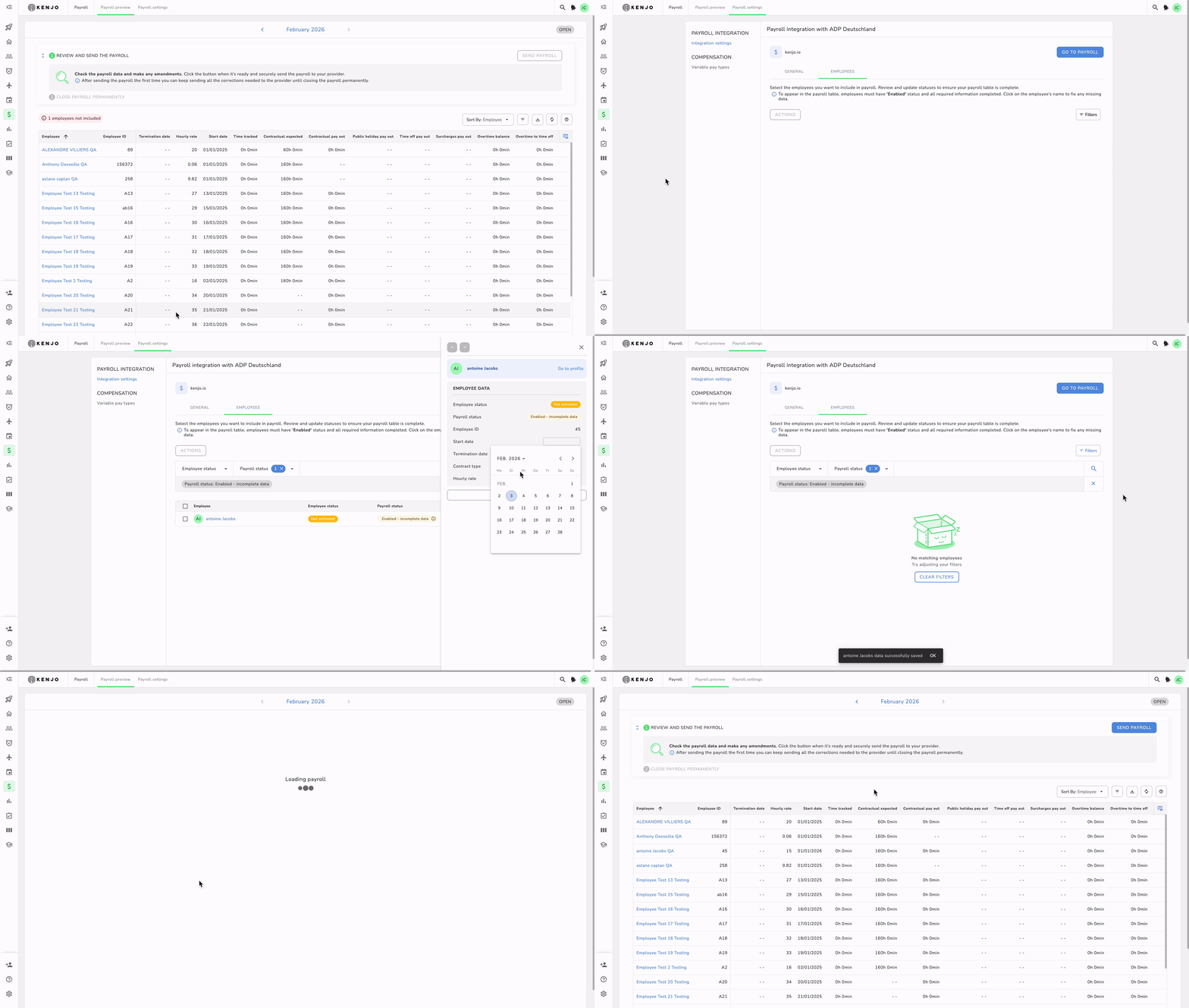
- Click on Employee not included
- Click on Go to settings
- Click on the employee’s name
- Complete the incomplete information in the right-hand pop-up window by clicking on the red highlighted field labeled Incomplete
- Click on SAVE
Was this article helpful?
That’s Great!
Thank you for your feedback
Sorry! We couldn't be helpful
Thank you for your feedback
Feedback sent
We appreciate your effort and will try to fix the article