Different profiles have different permissions regarding who can:
1. view and, if applicable, manage their own absences,
2. view and, if applicable, manage absences of selected employees, or
3. view and, if applicable, manage absences of all employees.
- Go to Settings
- In the horizontal menu, click Profiles & Permissions
- Select a profile in the left-hand menu and scroll to Time off
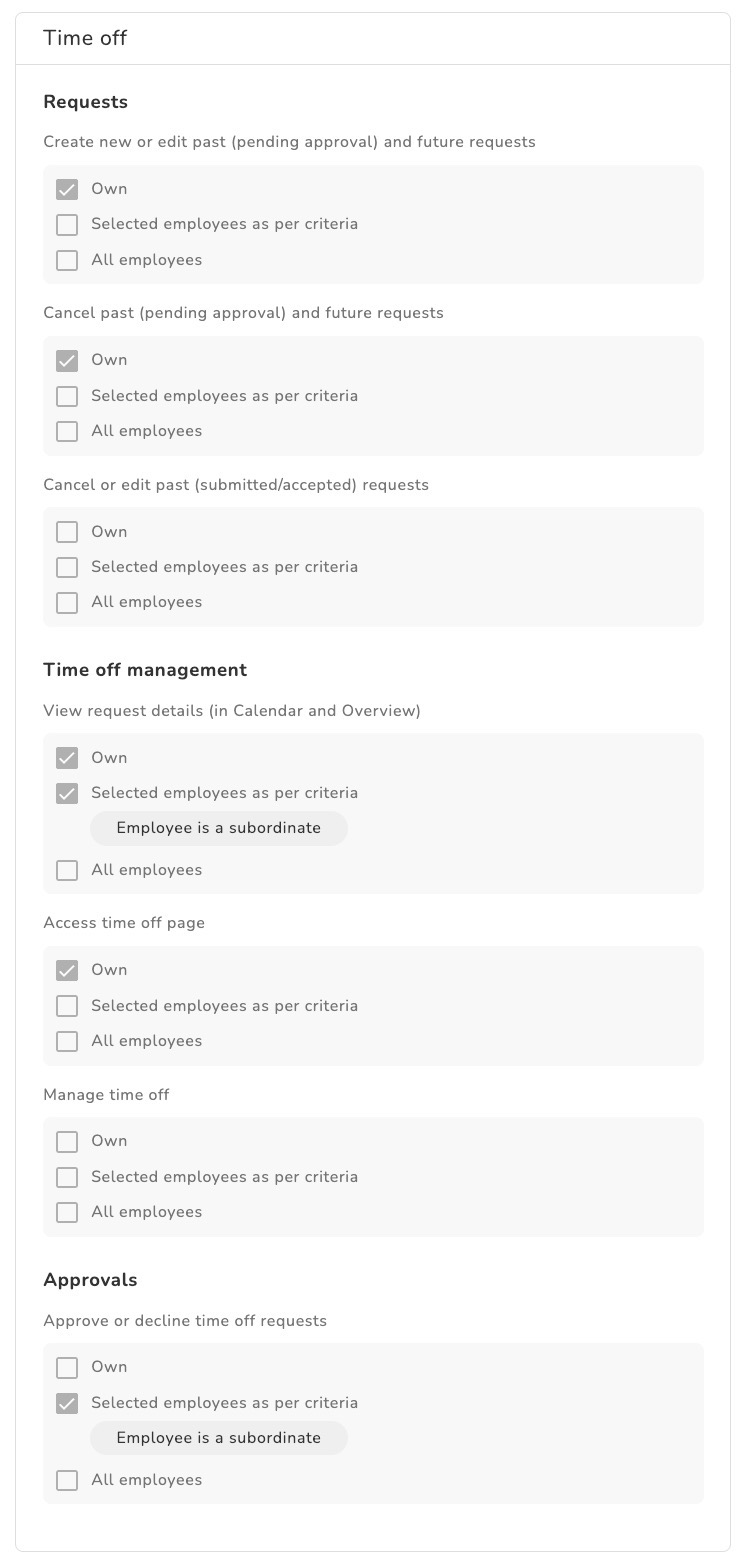
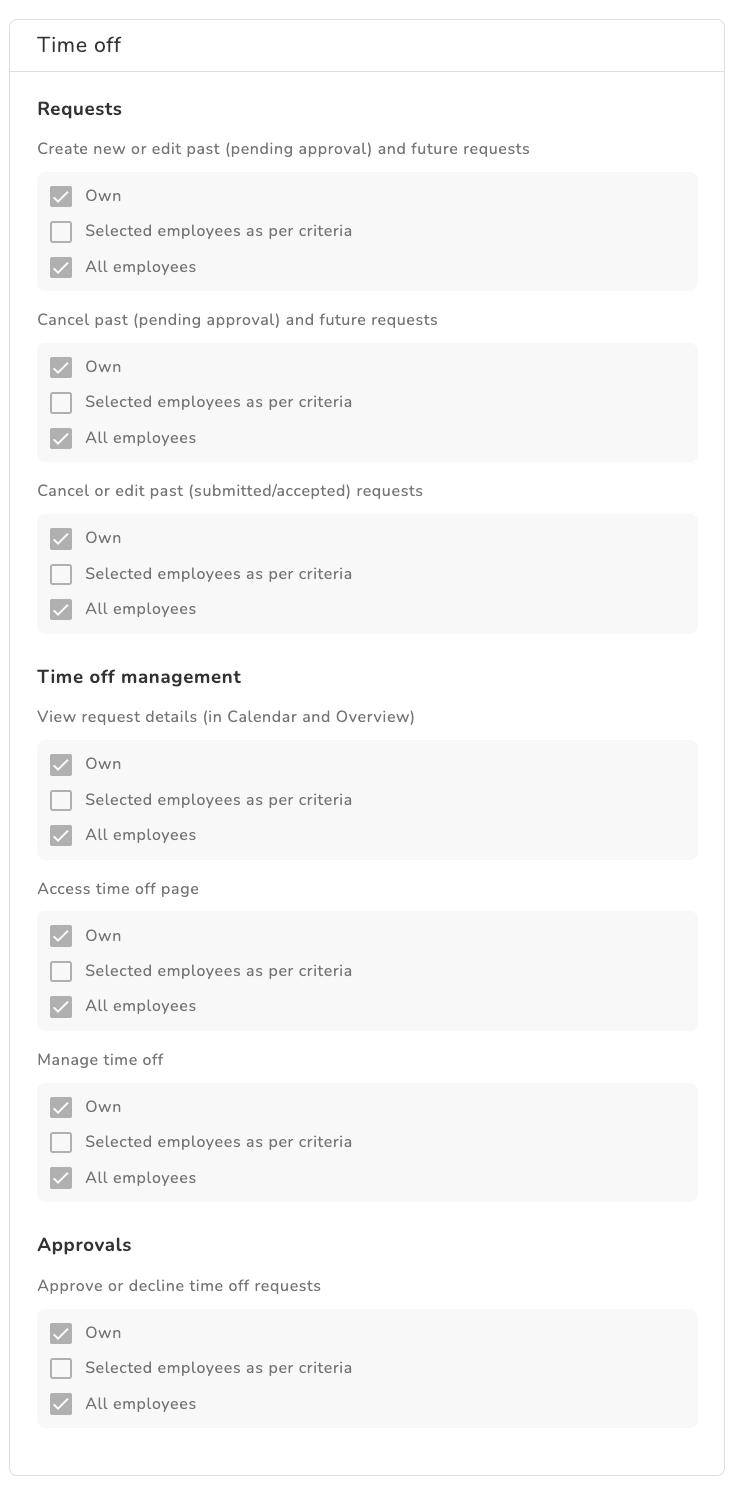
You can’t change permissions for Kenjo’s default profiles. Create a custom profile to freely assign permissions for that profile. There are three sub-categories: Requests, Time off management, and Approvals. Below, we explain each component of these permissions and explicitly show what each component allows you to do in the product.
| Example: Employee permissions | Example: Manager permissions |
 |  |
Requests
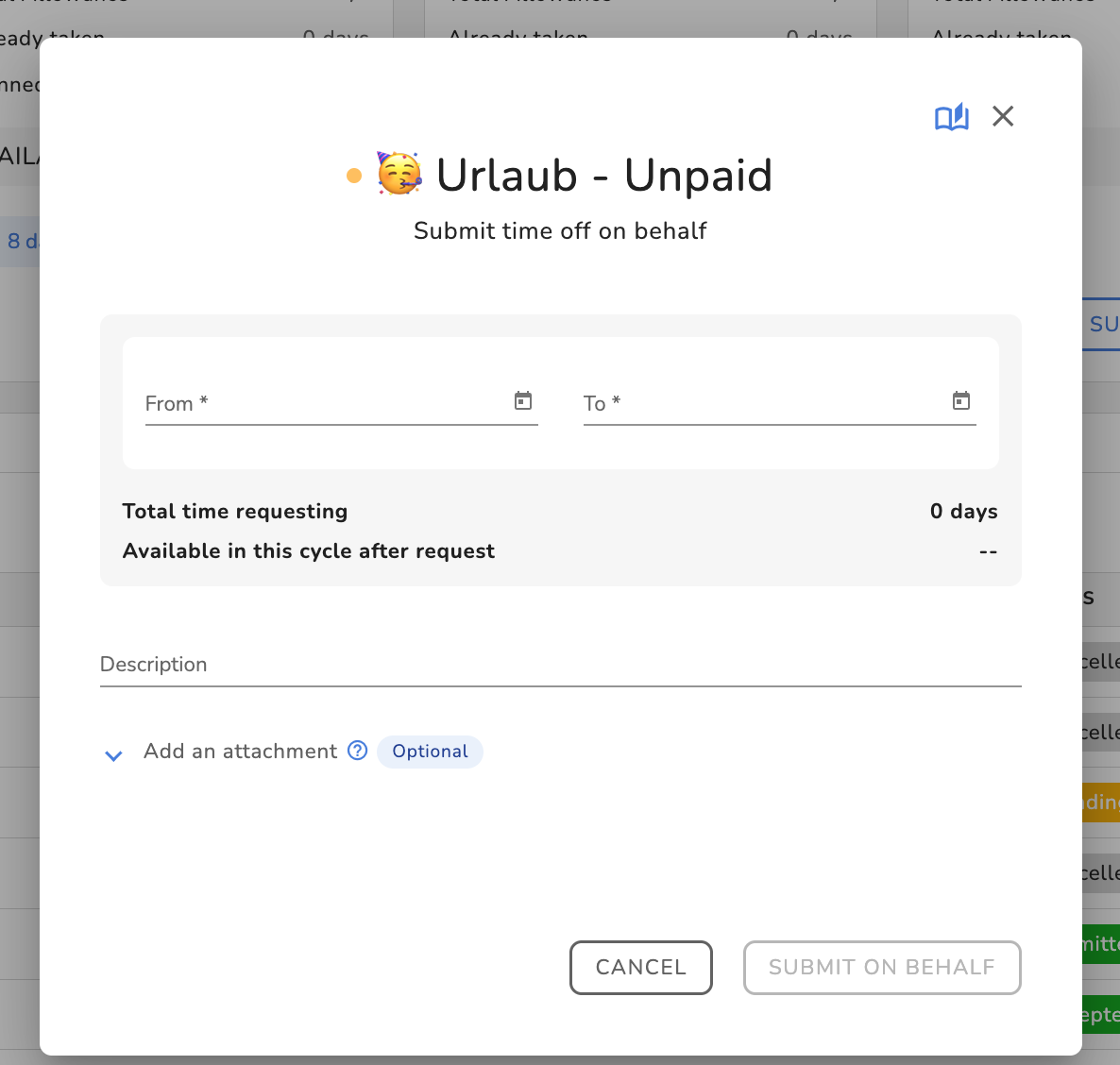
Under Requests, all permissions are grouped that allow you to edit or cancel past pending, past submitted, past approved, as well as future requests. Here, edit means changing the requested time off days; cancel means deleting a request. Either one profile has only permissions to edit or delete own requests or they are able to edit other employees' requests under Overview. Additionally one might be able to request a time off on behalf of other employees via their employee profile under the time off tab.
 |  |
Time off management
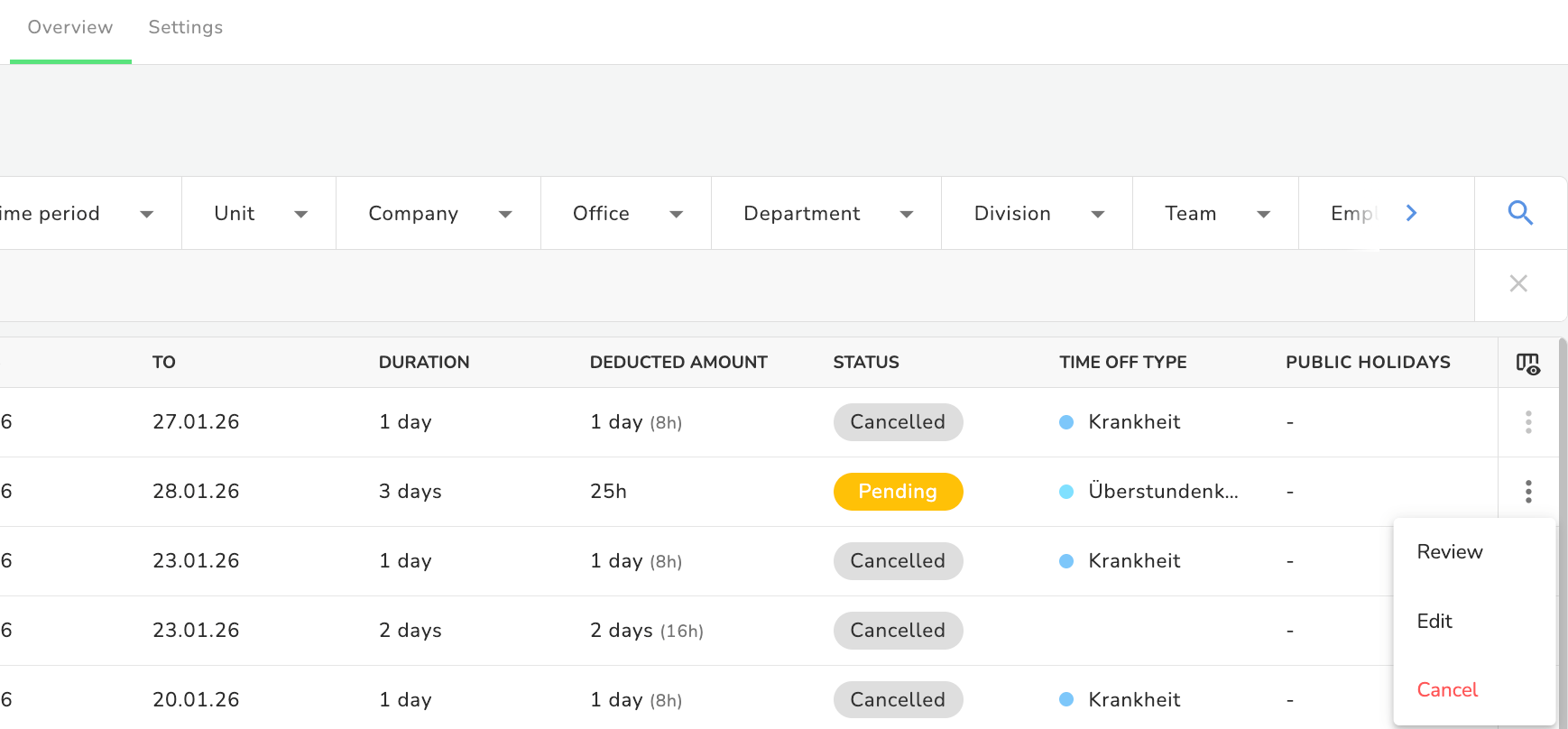
Here you’ll find access rights to view time off details and edit or delete existing requests under Overview as well as, under Company, to manage time off entitlements, including carrying over remaining vacation to the next cycles, and under Settings, to assign and change time off policies.
 | 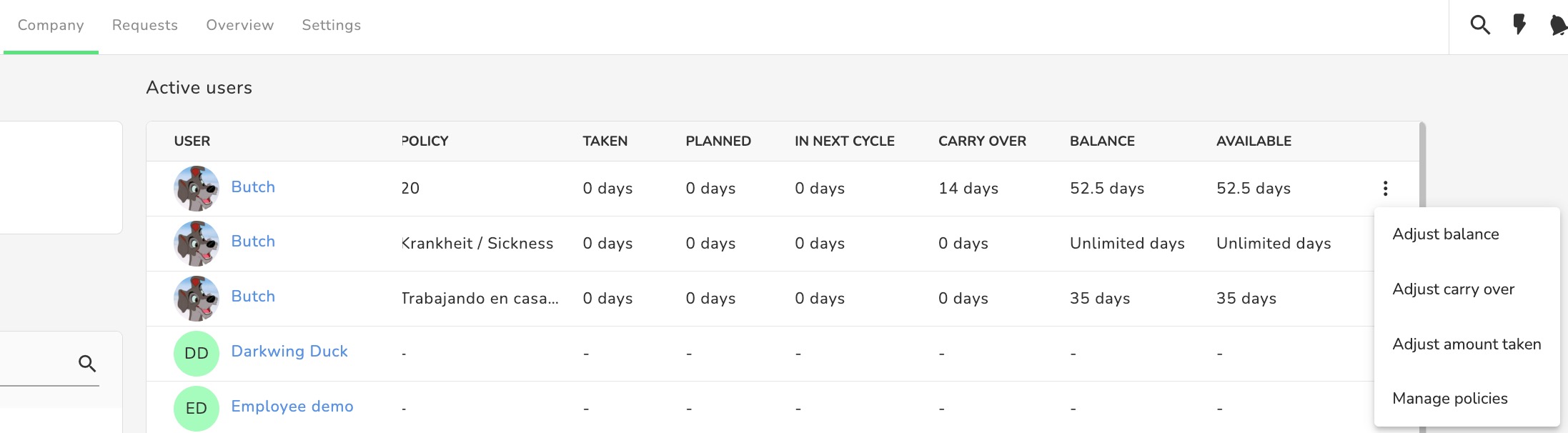 | 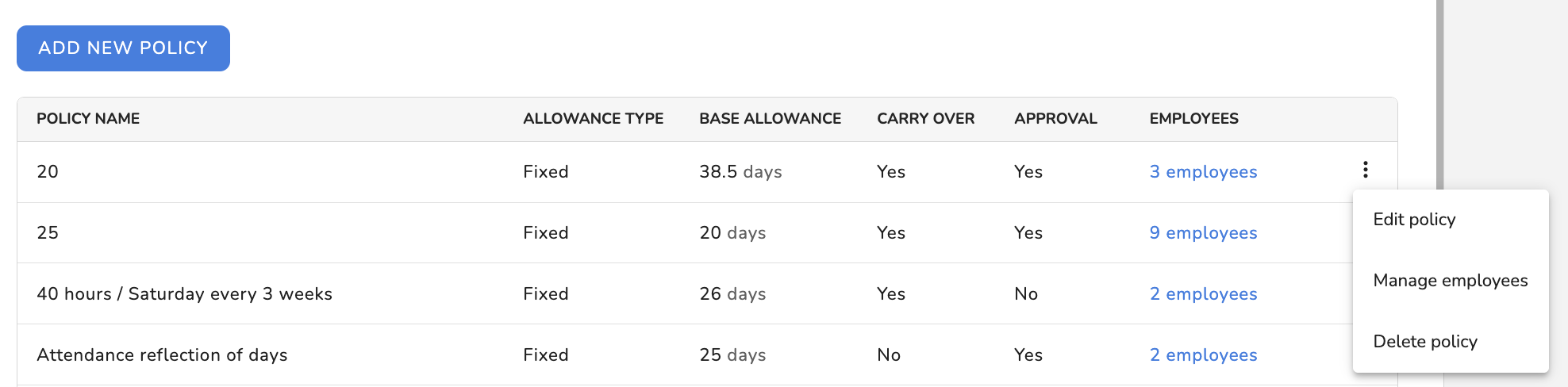 |
Approvals
Here you assign the rights to approve or reject an time off request.
Select permissions for specific employees
With custom profiles, you can assign permissions yourself. Here, you may want a certain user profile to be able to manage not only their own absences—but also not those of all employees in the company—only those of specific employees or groups.
- In a category, click Selected employees according to criteria
- Define the rule (or multiple rules) to select the employees
- Click FINISH
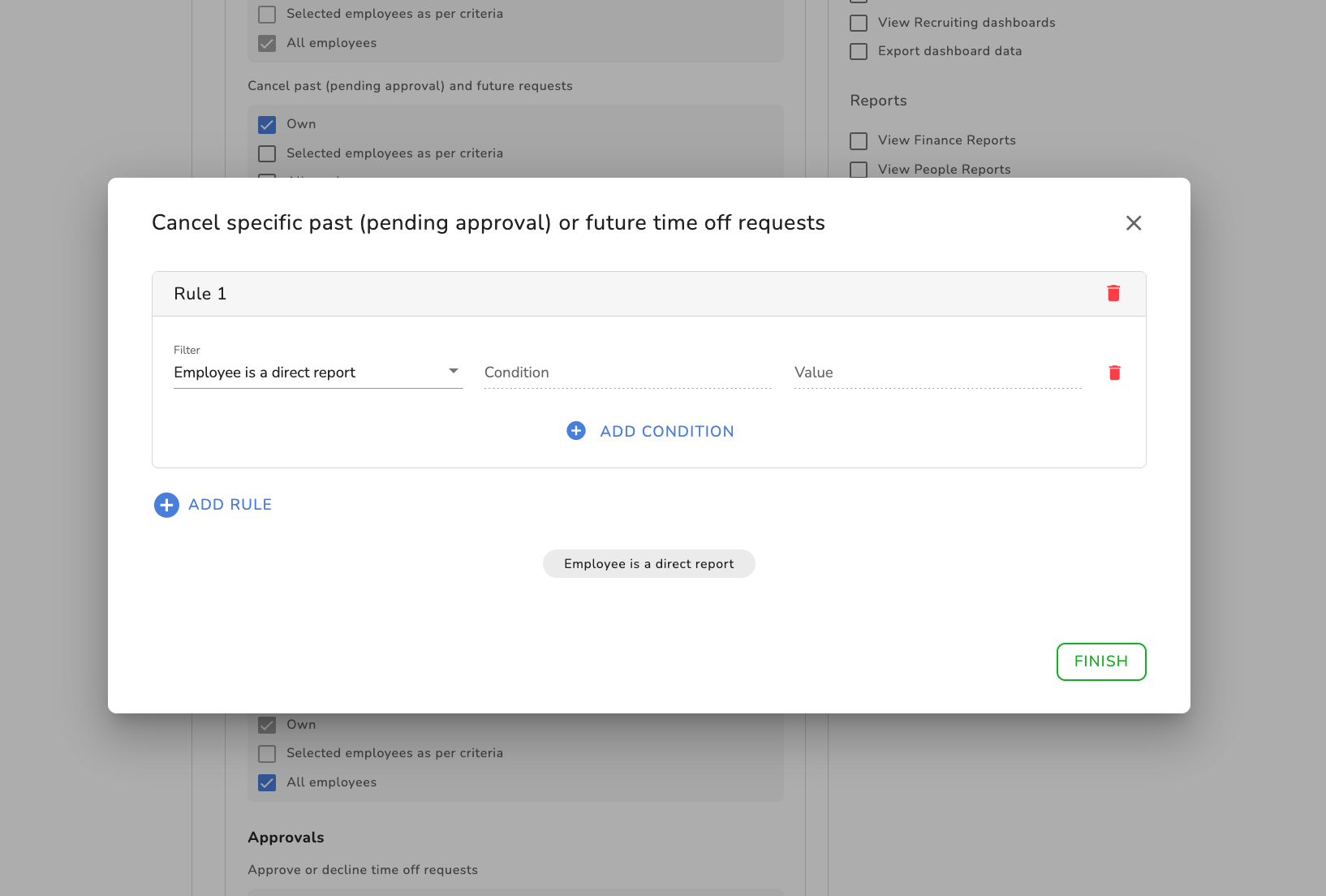
An employee is a direct report or directly managed employee if they are in a direct reporting line to the custom profile.

An employee is an employee within the scope if they fall under the responsibility of the custom profile.
In our example, we selected that the custom profile is allowed, across all absence-management areas, to manage employees who report to it—e.g., a senior employee can manage absence settings for the employees who report to them.
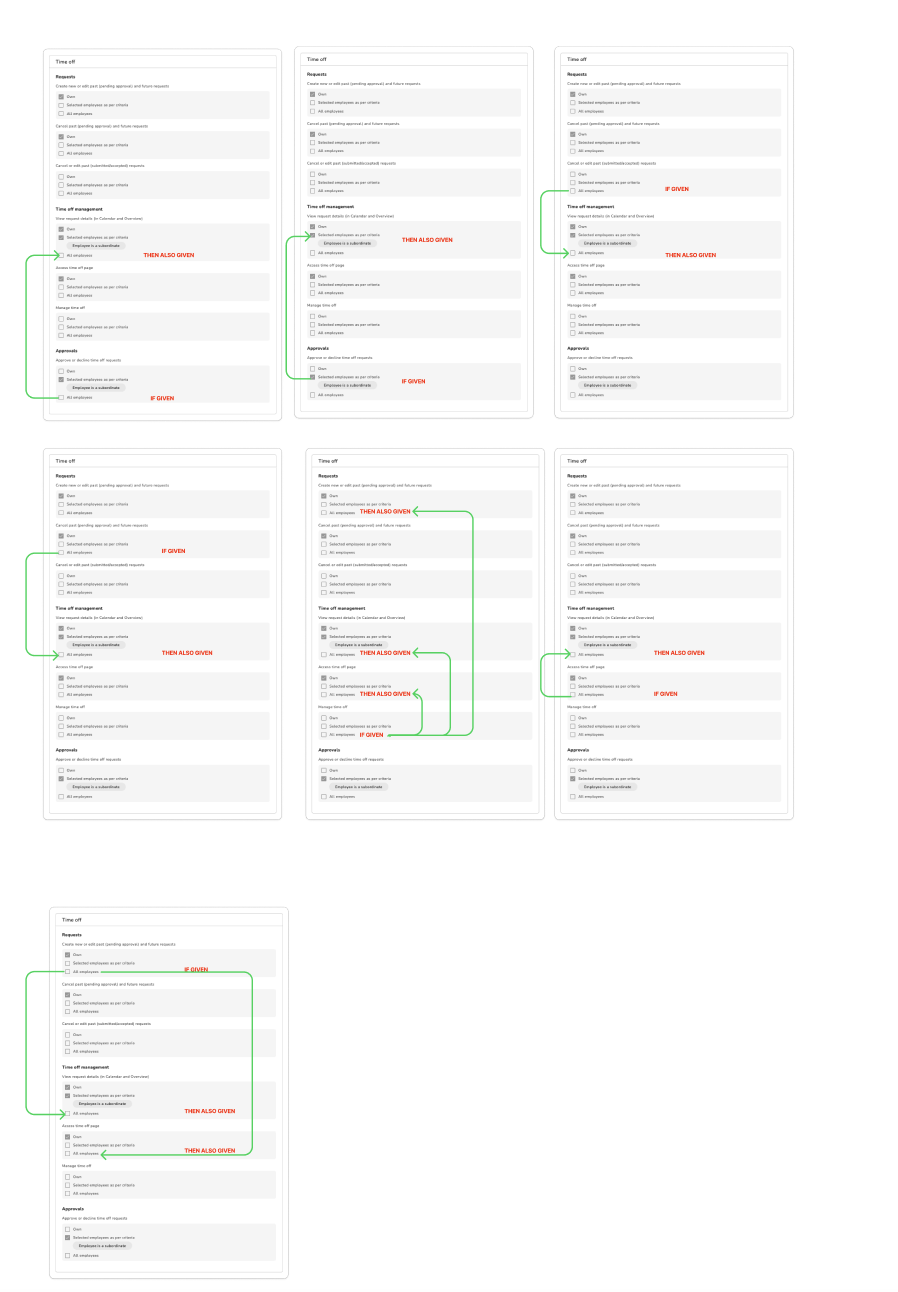
Be aware that some settings have dependencies and may be automatically checked or unchecked when you select a related setting elsewhere.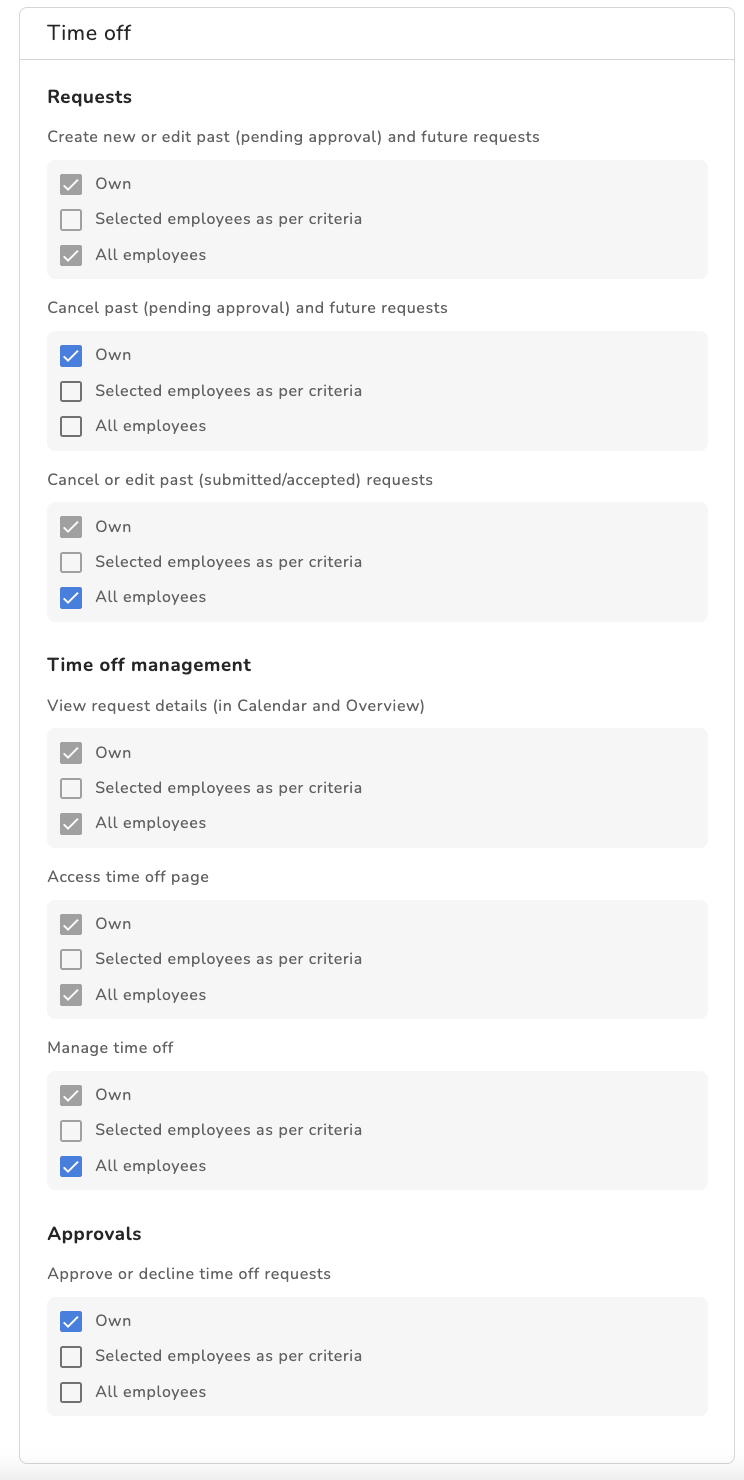
Here you can see the dependencies of which settings influence which other settings and how:
Was this article helpful?
That’s Great!
Thank you for your feedback
Sorry! We couldn't be helpful
Thank you for your feedback
Feedback sent
We appreciate your effort and will try to fix the article